
How to Set Up AutoPay
This guide explains how to set up AutoPay so your bill is paid automatically each month.
What Is AutoPay?
AutoPay allows your bill to be paid automatically using a saved payment method. This helps you avoid missed payments and late fees.
Step 1: Go to the AutoPay Section
Log into your account. From the navigation menu, select AutoPay.
Step 2: Add a New Schedule
On the AutoPay page, select Add a Schedule. If a schedule already exists, it may need to be updated by an agent.
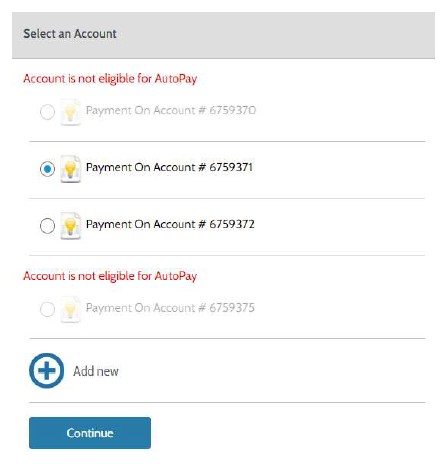
Step 3: Select Your Account
Choose the account you want to set up AutoPay for. If your account is not listed, select Add New. If AutoPay is already set up, you may not be able to create another schedule.
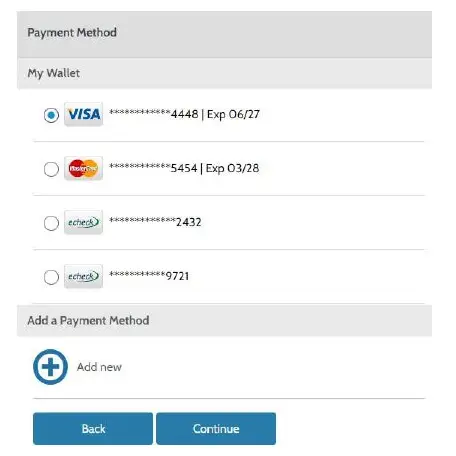
Step 4: Choose a Payment Method
Select an existing payment method or add a new one. This will be the method used for automatic payments.
Step 5: Set Your Payment Schedule
Choose how often payments should be made (frequency). Select the day your payment will be processed. (Optional) Set an end date if you want AutoPay to stop at a certain time.

Step 6: Set Up Notifications
Choose how you want to receive reminders: Email notifications Text (SMS) Phone call reminders
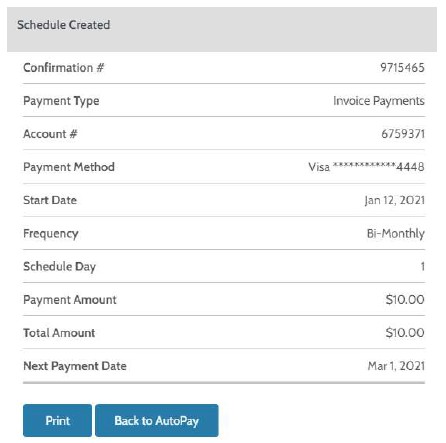
The first payment will be scheduled to be processed in 1–2 months. If the schedule day is greater than the last day of the month, the last day of the month is used.

Step 7: Review and Confirm
Read and accept the AutoPay terms and conditions. Select Create AutoPay to finalize your setup.
You will receive confirmation showing your AutoPay schedule.
Need Help?
If your speeds seem lower than expected, take a screenshot of your results and share it with support so we can help troubleshoot.
Tech support available 24/7
Tips for Using AutoPay
- Make sure your payment method is up to date.
- Set reminders if you want advance notice before payments process.
- Review your bill each month even with AutoPay enabled.
- Contact Customer Service if you need to make changes to your schedule.
Good to Know
- Only one AutoPay schedule is allowed per account.
- Some schedules may be created or managed by an agent.
- AutoPay helps avoid missed payments and late fees.
- Notifications can help you stay informed before payments are processed.
Need Help?
If your speeds seem lower than expected, take a screenshot of your results and share it with support so we can help troubleshoot.